COLLAB
COLLAB
COLLAB is a collaborative digital platform designed to help students, educators, and teams manage projects, share resources, and work together in one centralized environment.
Table of Contents
Privacy Policy
Getting Started
Learn the basics of using the COLLAB platform and setting up your workspace.
Introduction to COLLAB
COLLAB is a next-generation collaborative digital platform designed to bridge communication gaps between students, educators, administrators, and team members across diverse institutional and organizational settings. At its core, COLLAB provides a centralized environment where users can communicate in real time, manage complex tasks with granular assignment controls, upload and organize files with version tracking, and track progress across multiple projects and teams through comprehensive analytics dashboards. The platform eliminates the need for multiple disjointed tools by integrating messaging, project management, file storage, calendar scheduling, and reporting into a single unified interface. With role-based access controls, users can define permissions at the team, project, and folder level, ensuring that sensitive information remains secure while promoting transparency where needed. COLLAB also supports integrations with popular third-party tools such as Google Drive, Microsoft Teams, Slack, and Trello, allowing teams to work within their preferred ecosystems without sacrificing centralized oversight. The platform is built with scalability in mind, supporting deployments ranging from small classroom groups of twenty students to large institutional environments serving thousands of concurrent users across multiple departments and faculties. Every interaction within COLLAB is logged and auditable, providing administrators with detailed usage statistics and compliance-ready activity reports. The user interface follows modern accessibility standards (WCAG 2.1 AA), ensuring that all team members, including those with disabilities, can participate fully. COLLAB also features a responsive design that delivers a consistent experience across desktop computers, tablets, and mobile devices, so users can stay connected whether they are in a computer lab, attending a lecture, or working remotely from home. Onboarding is streamlined through interactive tutorials, contextual help tooltips, and a comprehensive knowledge base that guides new users through every feature. The platform's notification system is fully customizable, allowing users to choose between email digests, in-app pop-ups, and mobile push notifications based on their preferences and the urgency of the update. With support for multiple languages, COLLAB is ready for international deployments, and its modular architecture means institutions can enable or disable specific features based on their unique curriculum or workflow requirements.
Creating an Account
Creating an account on COLLAB is a straightforward process designed to get you up and running in under five minutes. Users can register using their personal email address or, for institutional deployments, their organization-provided credentials through single sign-on (SSO) integration with systems such as Microsoft Azure Active Directory, Google Workspace, LDAP, and SAML 2.0 providers. During registration, users are prompted to provide basic information including their full name, preferred email address, a secure password meeting modern cryptographic standards, and their role within the organization such as Student, Educator, Administrator, or External Collaborator. Upon successful verification of the email address via a confirmation link, users gain access to the onboarding wizard, which guides them through profile customization including uploading a profile photograph, setting a display name, configuring notification preferences, and selecting a time zone and language preference. COLLAB supports two-factor authentication (2FA) using authenticator apps, SMS codes, or hardware security keys for organizations that require an additional layer of security. After completing the initial setup, users can immediately search for and join existing teams using either an invitation link, a team code, or by browsing public teams within their institution. For new organizations, users with administrative privileges can create institutional accounts, define custom roles and permission sets, and bulk-import users via CSV or automated API endpoints. The account dashboard provides a centralized hub where users can manage their linked accounts, review their login history and active sessions, update security credentials, and configure privacy settings. COLLAB also supports social login options for personal accounts, including Google, GitHub, and Microsoft authentication. Every account comes with a personal workspace that serves as the user's private area for storing drafts, personal notes, and files before sharing them with teams. Users can also create and manage API tokens for programmatic access to COLLAB's REST and GraphQL APIs, enabling advanced automation and integration scenarios.
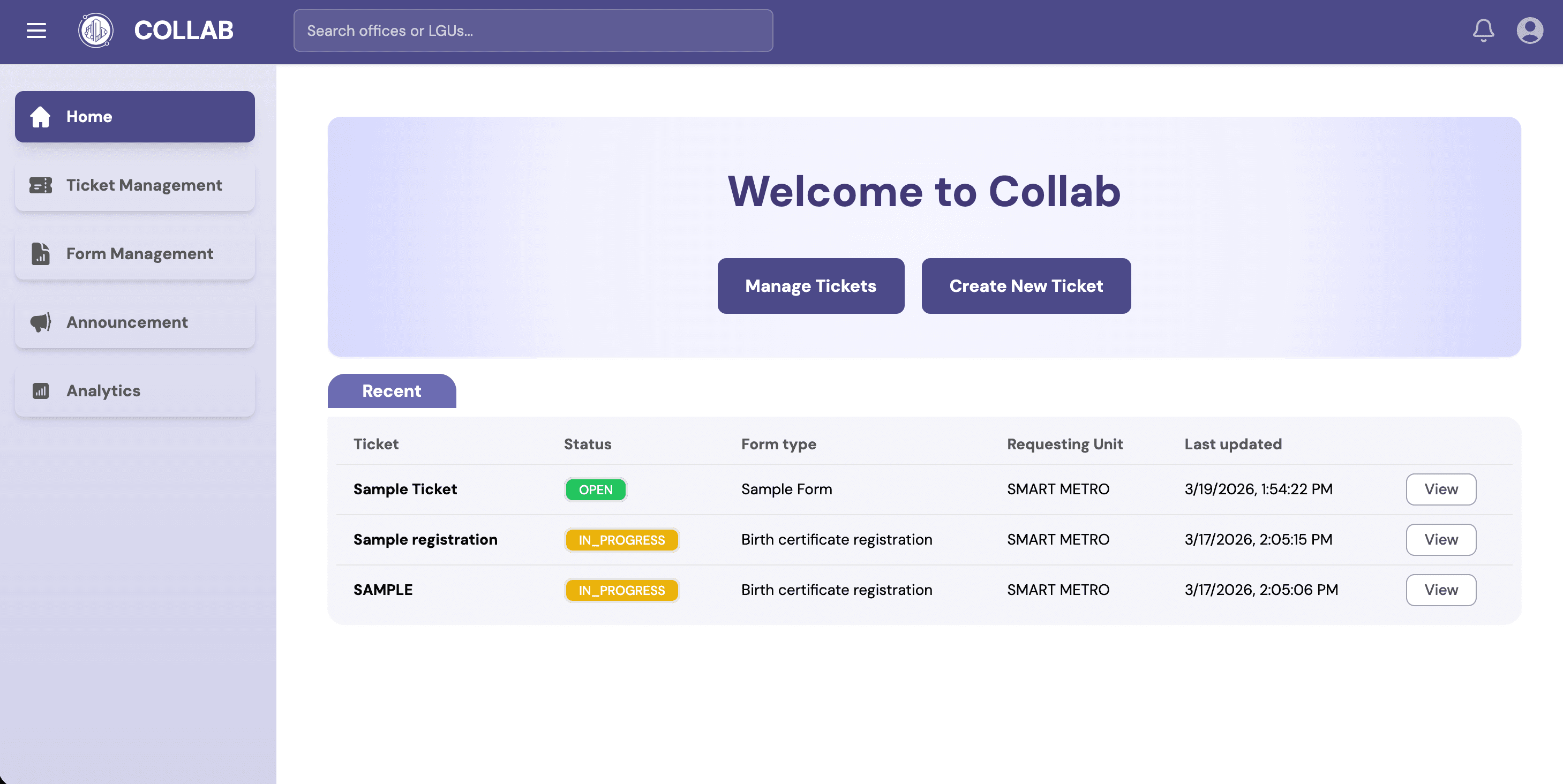
Dashboard Overview
The COLLAB dashboard serves as the central command center for all user activities, providing an at-a-glance overview of ongoing projects, team activities, pending notifications, and recently uploaded resources. Upon logging in, users are greeted with a customizable home screen that can be tailored to display the widgets and data most relevant to their role and responsibilities. The dashboard is divided into several key zones: the project overview panel shows the status of all active projects with color-coded progress indicators, upcoming deadlines, and task completion percentages. The activity feed displays a chronologically sorted stream of recent actions taken by team members, including file uploads, comments, task assignments, and status changes, ensuring that everyone stays informed without needing to manually check individual projects. The notifications center aggregates alerts from all teams and projects, allowing users to filter by priority, category, or sender, and mark items as read or snooze them for later attention. A quick-access toolbar provides one-click shortcuts to recently accessed files, pinned projects, and frequently used tools such as the calendar, messaging app, and report generator. The dashboard also features a personal productivity section that displays each user's assigned tasks, upcoming deadlines, and pending approvals, helping individuals prioritize their workload effectively. For team leads and project managers, an administrative panel within the dashboard provides high-level analytics including team workload distribution, resource utilization metrics, and project health scores derived from completion rates, response times, and member engagement levels. The dashboard is fully responsive and adapts its layout based on screen size, ensuring that critical information remains accessible on mobile devices without overwhelming the user interface. Widgets can be rearranged using drag-and-drop interactions, and users can create multiple dashboard views for different contexts such as a personal productivity view, a team management view, and an executive summary view. All dashboard data is updated in real time through WebSocket connections, ensuring that users always see the latest information without manual page refreshes. The search functionality integrated into the dashboard header indexes all projects, files, messages, and team members, providing instant results with contextual filters and advanced search operators. Finally, the dashboard includes a getting-started checklist that guides new users through key features and best practices, gradually introducing advanced capabilities as users become more comfortable with the platform.